Your AirPods can tell when you slouch
The sensor that lets spatial audio follow your head also notices when your head sinks towards the screen. What it sees, what it misses, and when the camera is the better choice.
The short answer. Yes, on a Mac. AirPods Pro, AirPods Max and AirPods (3rd generation or later) have a motion sensor that tracks the angle of your head, the same one spatial audio uses, and a posture app can read it to tell you when your head drops forward and stays there. AirPods cannot see your shoulders, your back or how close you sit to the screen, and they only track while they are in your ears. TryWorkWell can track with either: AirPods on a Mac, or the webcam on Mac and Windows.
For a lot of people that trade is worth making. No camera on while you work, nothing stuck to your back, and no extra hardware if the AirPods are already in your ears for half the day.
How AirPods know where your head is
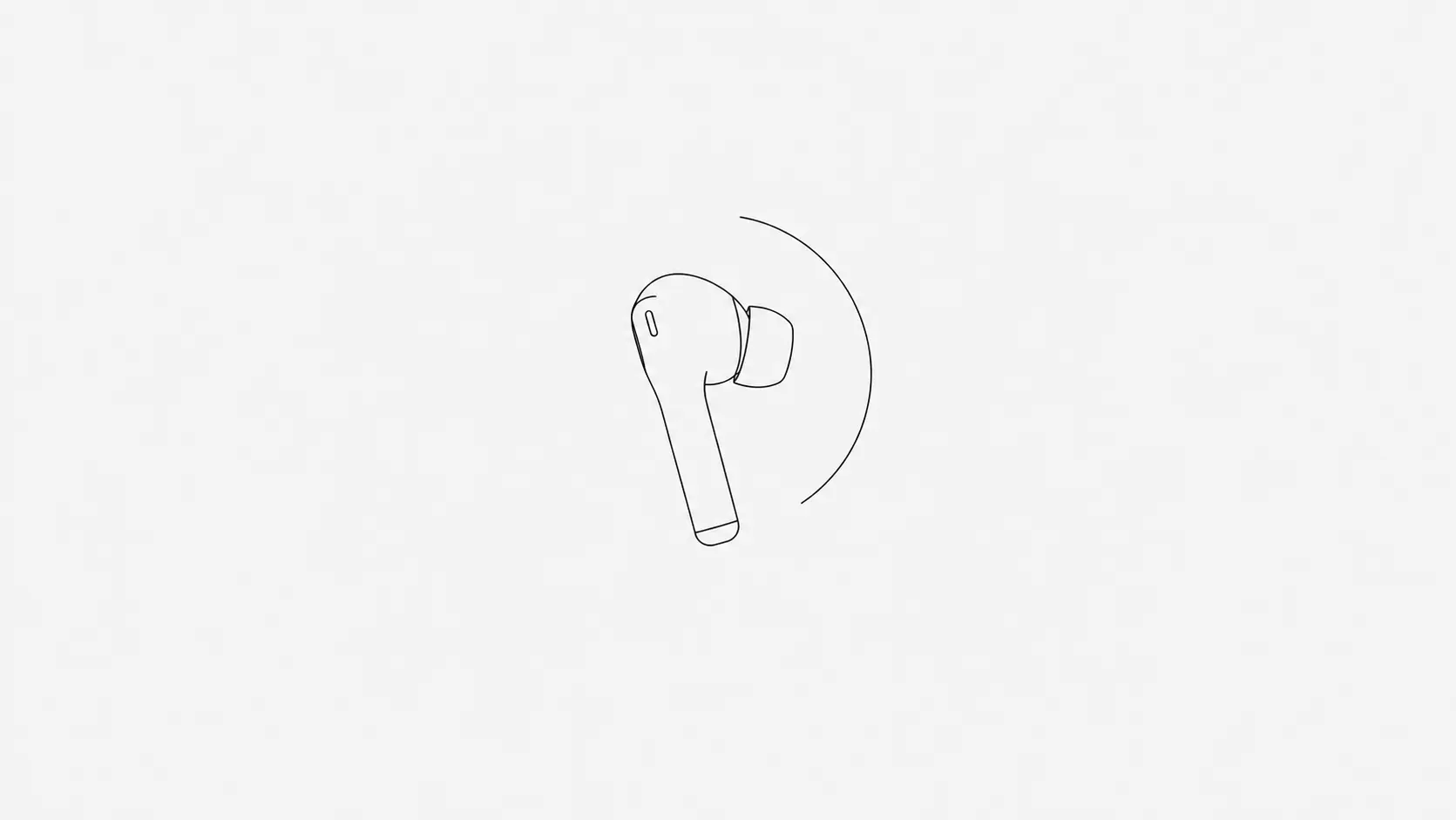
AirPods that support spatial audio with head tracking carry a motion sensor that follows how your head turns and tilts. Apple uses it to keep the sound anchored to your screen as you move. An app on your Mac can read the same signal, which gives it a running measure of your head angle: tipping forward and back, and leaning to the side.
A posture tracker works by comparison. You sit upright once, it records where your head is, and from then on it watches for your head drifting away from that position and staying there for long enough to count. A quick glance down at your notes is not what it is looking for. A head that creeps forward and settles there is.
That is the right thing to watch. Our article on text neck goes through why a moderate angle held rigidly for hours does more to your neck than a bad one you keep leaving, and catching the long holds is exactly what a reminder like this is for.
What AirPods can and cannot see
What they pick up
- Your head dropping forward. The classic desk slouch, chin creeping towards the keyboard as the work gets harder.
- Your head tilting back or to one side. The sensor reads both, not just the forward lean.
- How long it stays there. The alert comes when you have drifted and stayed, not every time you move.
What they miss
- Your shoulders and upper back. You can round your back and slide down in the chair while keeping your eyes level with the screen, and a sensor in your ears has no way to tell.
- How close you sit to the screen. Leaning in is often how a slouch starts, and it matters for your eyes as well as your neck, as our article on monitor distance explains. Only a camera can measure it.
- Anything while they are out. They track while they are in your ears and connected to the Mac, and not otherwise.
Which AirPods and Macs work
- AirPods Pro, AirPods Max, and AirPods (3rd generation or later). The 1st and 2nd generation AirPods are not supported.
- A Mac on macOS 14 or later. The AirPods need to be connected to the Mac, not to your phone.
- Not Windows. On Windows, TryWorkWell tracks posture with the webcam instead.
How to set it up in TryWorkWell
- 1Put your AirPods in and check they are connected to the Mac rather than your phone.
- 2In TryWorkWell, open Settings › Posture tracker › Track with and choose AirPods.
- 3When macOS asks for Motion & Fitness access, click Allow. It only asks once.
- 4Sit upright and hold still for about three seconds while it calibrates.
- 5Carry on working. You get the same alerts, the same sensitivity setting and the same 0 to 100 posture score as with the camera.
If the AirPods disconnect or switch over to your phone, tracking pauses. When they are back, TryWorkWell asks you to sit upright again to recalibrate.
Where the motion data goes
Nowhere. Your head angle is read and compared with your calibrated position on the Mac, and the motion data stays there. No camera is involved at all in this mode, which for many people is the whole point.
If you use the camera instead, the same principle holds: the video is analysed on your computer and never recorded or uploaded.
AirPods or camera: which to use
| AirPods (Mac) | Camera (Mac and Windows) | |
|---|---|---|
| What it tracks | Head angle: forward, back and to the side | Head and shoulders |
| Screen distance alerts | No | Yes |
| Camera on | No | Yes, analysed on your computer, never recorded or uploaded |
| Works while | The AirPods are in your ears and connected to the Mac | You are in front of the camera, with enough light to see you |
| You need | AirPods Pro, AirPods Max or AirPods (3rd generation or later), and macOS 14 or later | A webcam |
| Alerts and score | Same alerts, sensitivity and 0 to 100 score | Same alerts, sensitivity and 0 to 100 score |
- Use AirPods if you already wear them at your Mac for long stretches, would rather not have a camera on, or work somewhere the light is poor.
- Use the camera if you want the fuller picture: your shoulders as well as your head, and a warning when you creep towards the screen. It is also the only option on Windows, and it works whether or not you have anything in your ears.
You do not have to choose for good. It is one setting, so switching on the days you wear AirPods is easy. If you are also weighing a wearable like Upright GO, our comparison of webcam, AirPods and wearable trackers covers all three, and our Upright GO alternative piece puts the two side by side.
The alert is the part that helps
No tracker holds you upright, whether it lives in your ears, on your back or above your screen. What it does is tell you at the moment you slouch, which is the part you cannot do for yourself, because drifting forward does not feel like anything while it is happening. Feedback of that kind is the one posture intervention with a reasonably consistent effect, as our piece on posture braces covers.
Getting the most out of it
- Calibrate the way you can sit for an hour, not the way you sit for a photo. An upright position you cannot hold turns every alert into a nag.
- Treat each alert as a cue to move, not just to straighten up. Standing up every twenty to thirty minutes does more than any single position.
- Increase your text size before you increase your lean. If the alerts keep coming while you read, the screen may be the cause rather than your posture. People often go forward because they cannot see comfortably.