Arm's length is not a rule, it is a coincidence
How far your screen should sit depends on its size and how small your text is, and the number people quote comes from an era of much smaller monitors.
Sit an arm's length from your screen. It is the one piece of monitor advice everybody has heard, it fits on a poster, and it is roughly right by accident.
It became standard when a large monitor was seventeen inches. Screens have roughly doubled since, arms have not, and the advice was never really about your arm in the first place.
What distance is actually for
Two things decide how far away a screen should be, and neither is your reach.
How big the thing you are reading is. Your eye has to resolve the text. If the letters are small, you will close the gap until they are legible, whatever the poster says, and you will do it without noticing.
How much of your vision it fills. A screen close enough to occupy most of your visual field forces your eyes to keep converging inward and your head to sweep to reach the corners. Further away, your eyes relax and your head stops moving.
So the honest version of the rule is: as far away as you can put it while the text is still comfortable. That distance goes up as the screen gets bigger, not down.
Rough starting points
| Screen | Start at about | Then |
|---|---|---|
| 13 to 15 inch laptop | 50 to 60 cm | Raise it and add a keyboard before worrying about distance |
| 24 inch monitor | 60 to 70 cm | Push it back until text is slightly small, then increase text size |
| 27 inch monitor | 70 to 85 cm | Most people have this far too close |
| 32 inch or ultrawide | 85 cm to a metre | If you cannot see the corners without turning your head, it is too near |
These are starting points to adjust from, not targets to measure to. The correct distance is the one where you are not leaning and not squinting, and you will find it faster by moving the screen than by reading tables.
Height matters more than distance
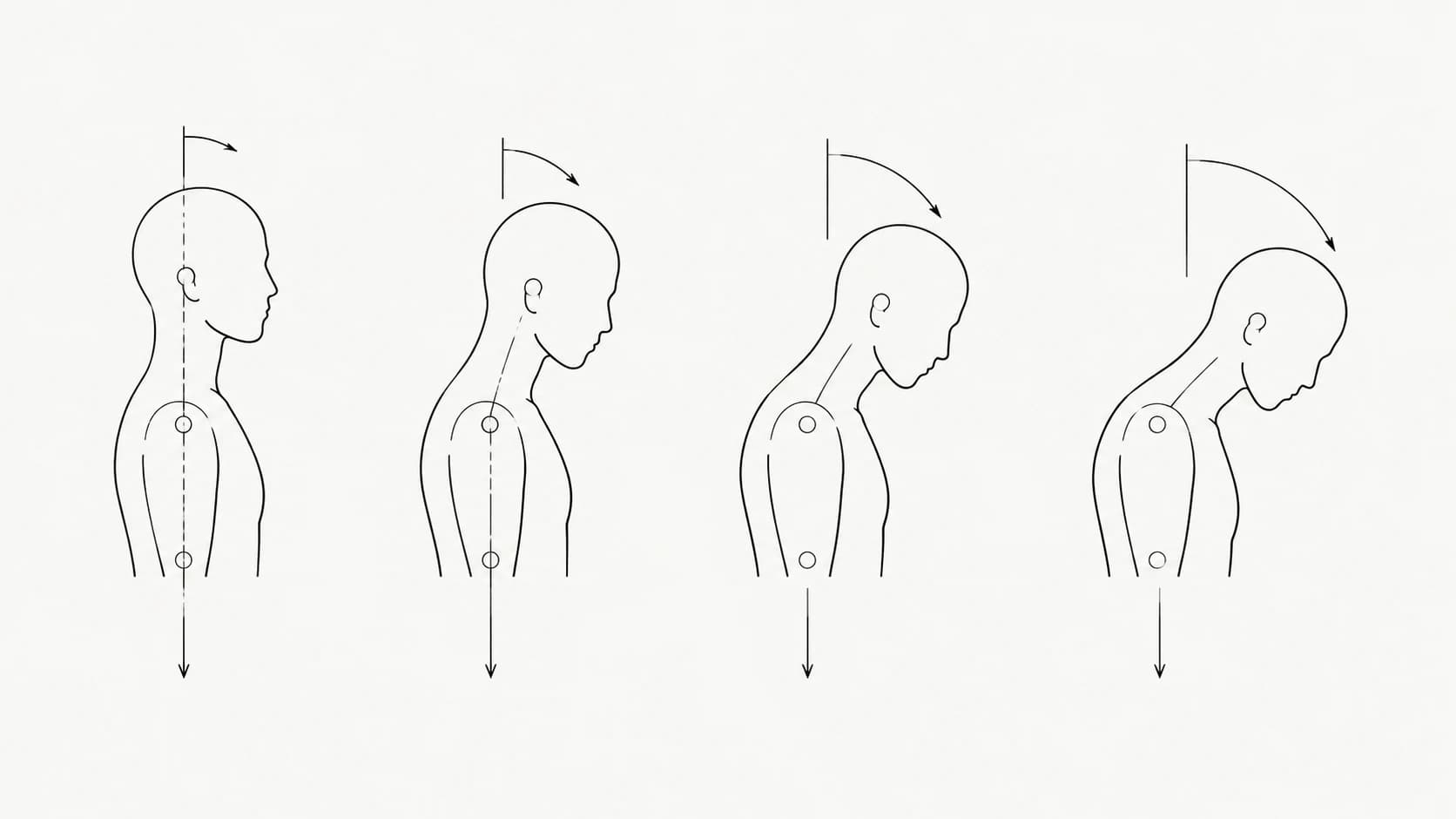
If you only change one thing, change the height. Distance errors make your eyes work harder. Height errors make your neck hold a position for hours, and your neck is much worse at that than your eyes are.
The top of the screen should sit at roughly eye level or a little below, so your gaze falls slightly downward into the middle of it. That is the natural resting angle for eyes and it lets your head balance rather than tilt.
Two exceptions. If you wear varifocals or bifocals you will need the screen lower, because you are reading through the bottom of the lens and lifting your chin to find it is exactly the problem you are trying to avoid. And a laptop cannot satisfy this at all without a stand and a separate keyboard, since screen and keyboard are bolted together.
The lean-in problem
Whatever you set, you will not hold it. There is a reliable pattern: people set a sensible distance in the morning and are noticeably closer by mid-afternoon. It happens during concentration, it happens faster when text is small, and almost nobody catches themselves doing it.
This matters more than the initial setup, because the position you drift into is the one you spend the most hours in. Fixing your desk once and never checking it again solves the easy half of the problem.
Two screens
Dual monitors are where good setups usually fall apart, because the second screen gets placed wherever it fits.
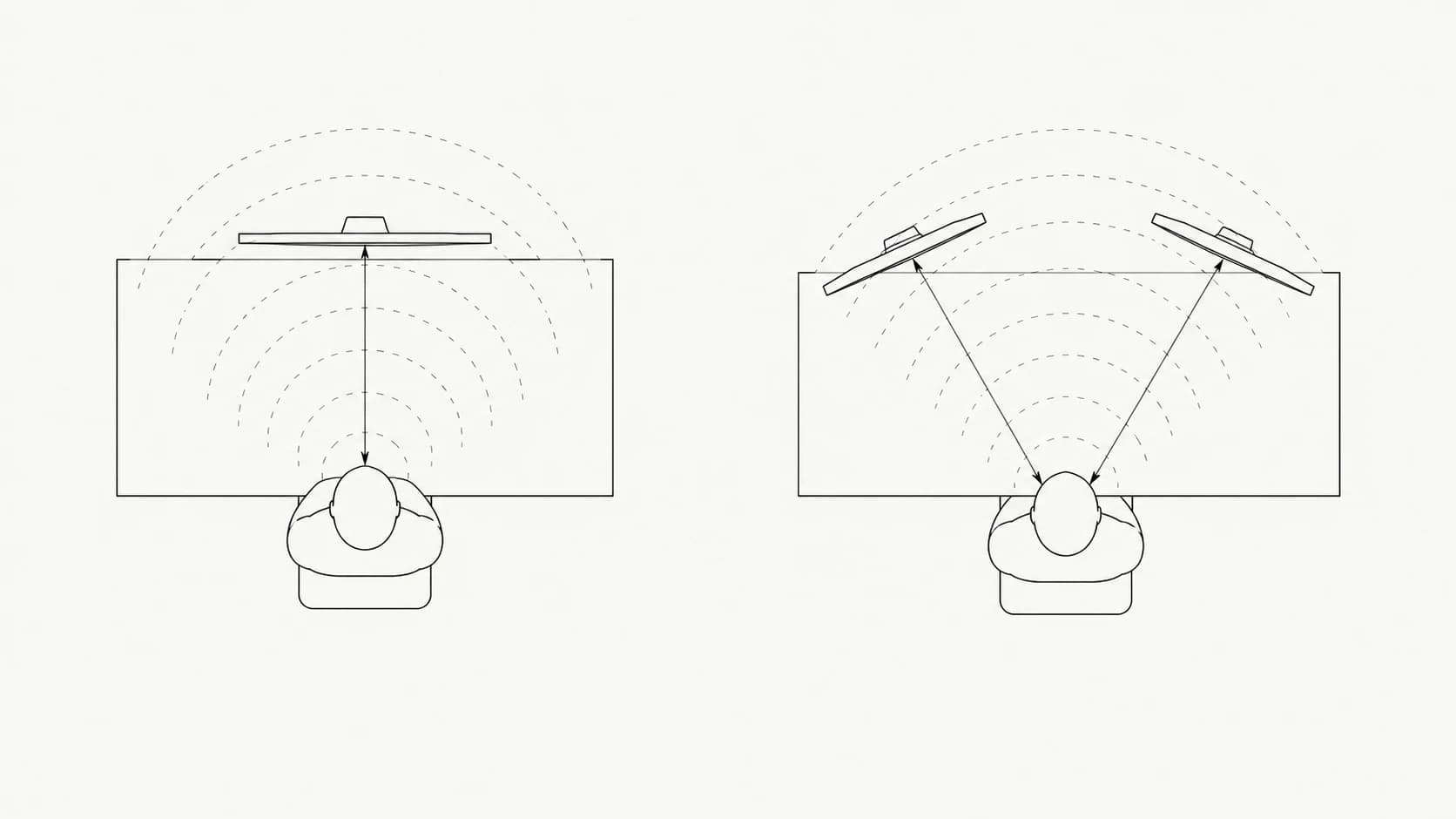
- If one screen does most of the work, put that one directly in front of you and the second off to the side. Splitting the difference so both are slightly off-centre gives you two compromised positions instead of one good one.
- If you genuinely use both equally, centre the join between them on your nose and angle each inward slightly, so the two form a shallow arc around you.
- Match the heights. A second screen sitting lower than the first means every glance across is also a nod down, several hundred times a day.
- Angle, do not just rotate your head. If you are turning your neck more than about thirty degrees to see something, move the screen instead.
Text size is the cheapest fix in this article
Almost everyone runs their screen at a resolution that makes text slightly too small, then compensates with their spine. It is free to change and it removes the reason for the lean.
Do this now, it takes a minute
- Mac: System Settings, Displays, pick a scaled option one step toward Larger Text.
- Windows: Settings, System, Display, raise Scale to 125 percent.
- Browsers: Cmd or Ctrl and plus. Most sites are set for younger eyes than yours.
- Then push the screen back until the text looks the size it did before. You now have the same legibility at a distance that asks less of your eyes.
Brightness, quickly
Your screen should be about as bright as the wall behind it. Much brighter and you are staring at a lamp; much darker and you are reading in a dim room with a glowing rectangle in it. Both make you lean in.
The most common error is a bright screen in a dark room at night, which is also the setup most likely to end with a headache.
The short version
Push the screen further back than feels natural, make the text bigger to compensate, and get the top of it to eye level. Then accept that you will drift toward it anyway, and that noticing the drift is worth more than getting the first measurement right.